If reading is hard because of dyslexia, low vision, age, or eye strain, you can listen to the Bible. The free Bible Garden app for iPhone and iPad has recordings of all 66 books in English without background music. The chapter stays on screen, and the verse being read is highlighted. You can enlarge the Bible text, slow the audio, and add a pause after each verse.
Below are ways to set it up for yourself or someone you care about, along with dyslexia-friendly print Bibles, Braille Bibles, and US talking-book services. With VoiceOver and the largest iOS system text size, the app does not yet work fully; we are working on this.
Listening is a way to know Scripture
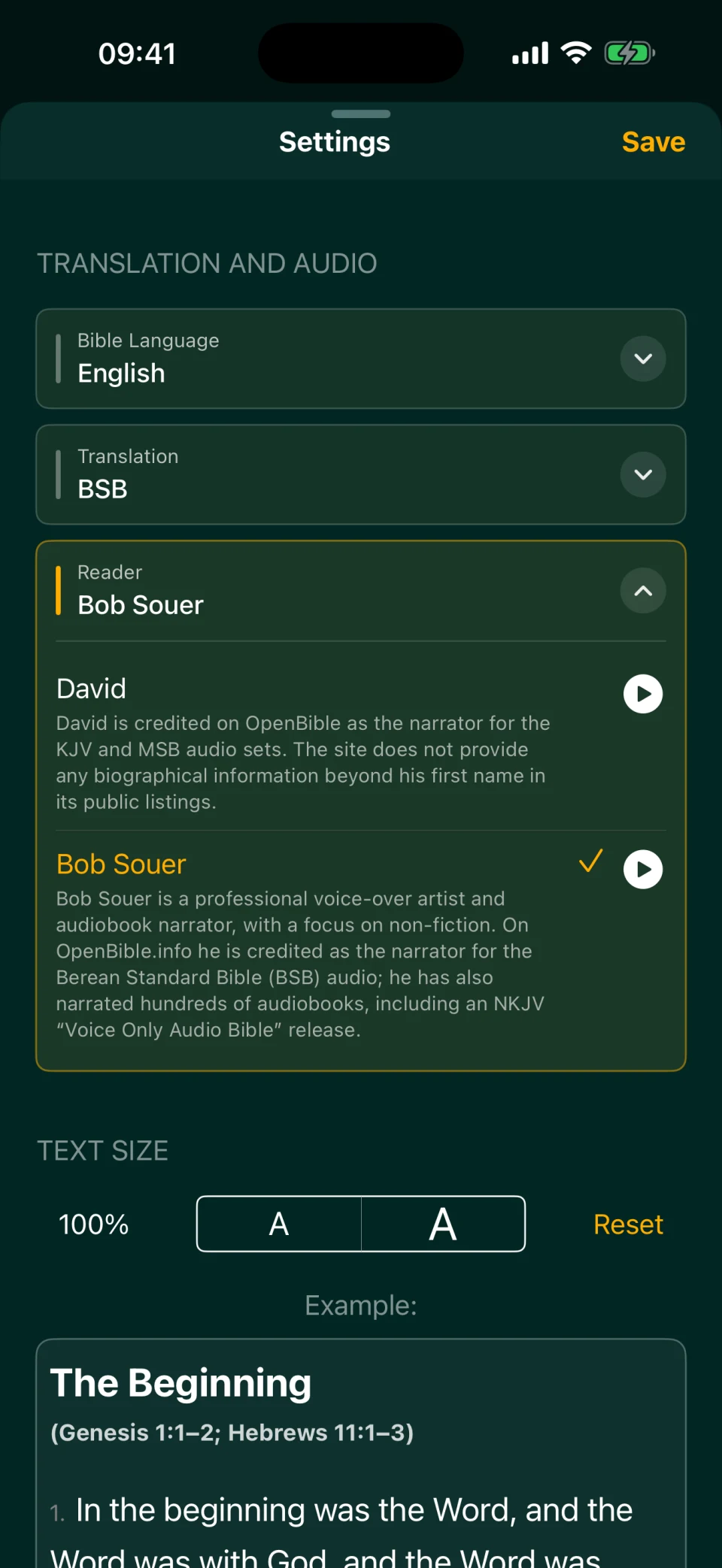
For centuries, Christians have heard Scripture in worship, at home, and from preachers. Listening gives you access to the same text when reading it is difficult. It is not a lesser way to engage with the Bible.
Bible Garden has four English recordings, all without background music:
- Bob Souer — Berean Standard Bible (BSB), all 66 books;
- David — BSB, all 66 books;
- Winfred Henson — World English Bible, US edition (WEB), all 66 books;
- an unnamed narrator — World English Bible, British Edition (WEBBE), all 66 books.
The app plays a voice sample before you choose. Try a few and pick the voice you find easiest to follow. Hear more in “Audio Bible narrators.”
Mark takes about 81 minutes in Bob Souer’s recording at normal speed, or about five minutes per chapter on average. It has 16 chapters: one a day brings you through the Gospel in 16 days. For other books, see “How long does it take to read the Bible?” The audio times come from our reading-time data measured on October 4, 2026.
Listen and follow the text
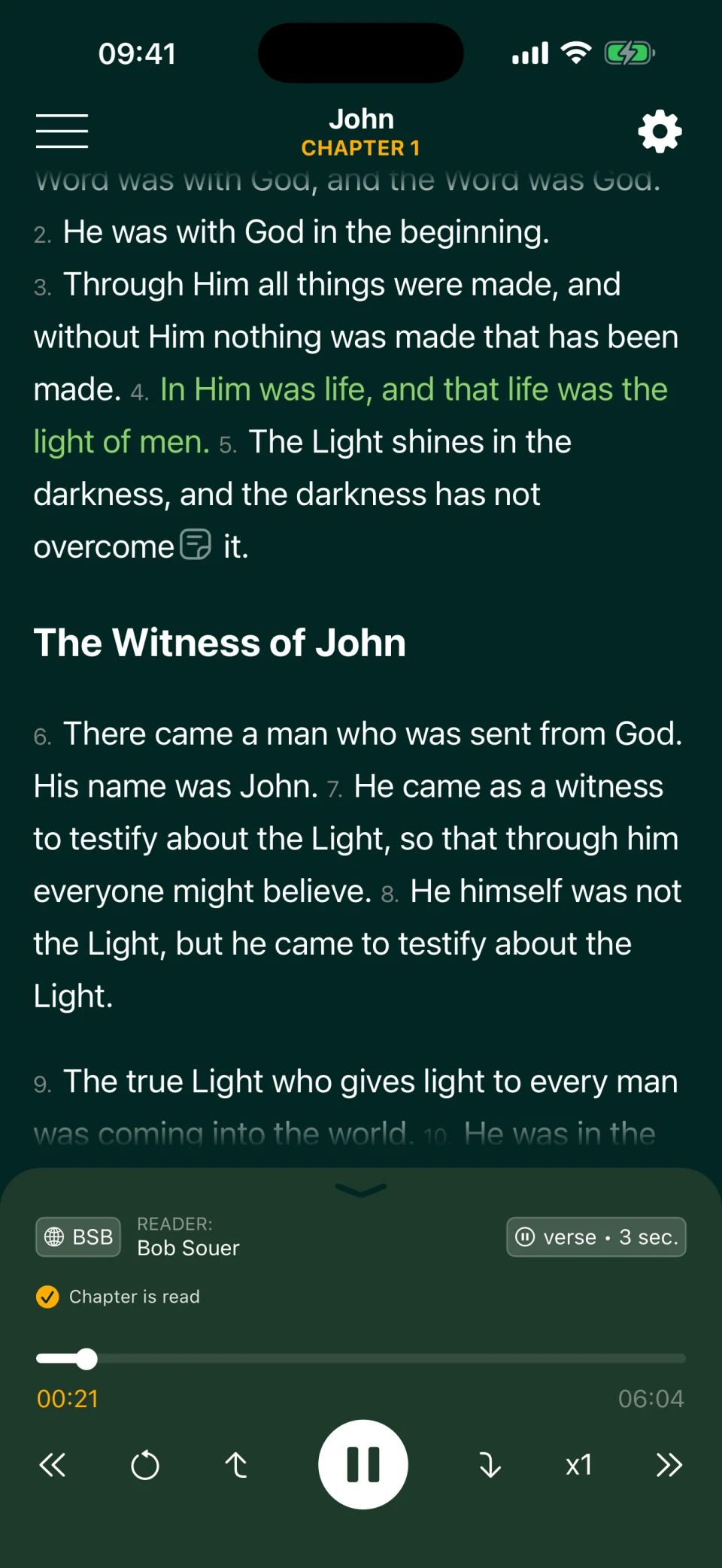
Bible Garden highlights the verse you are hearing. As the narrator reads, the text scrolls automatically and the current verse is highlighted, so you do not have to search for your place. Follow along when it helps, or rest your eyes and keep listening.
The British Dyslexia Association recommends audiobooks in its advice for parents of children with dyslexia. It also notes that some apps highlight text as it is read, which can help children identify words. Bible Garden highlights a whole verse, rather than individual words. Try it and see whether that helps you keep your place.
Below the text is the player. Its up and down arrow buttons go straight to the start of the previous or next verse, so you can hear a missed verse again without guessing where to rewind. A separate button returns to the start of the chapter. When playback is stopped, the arrows move the highlight; Play starts at the selected verse.
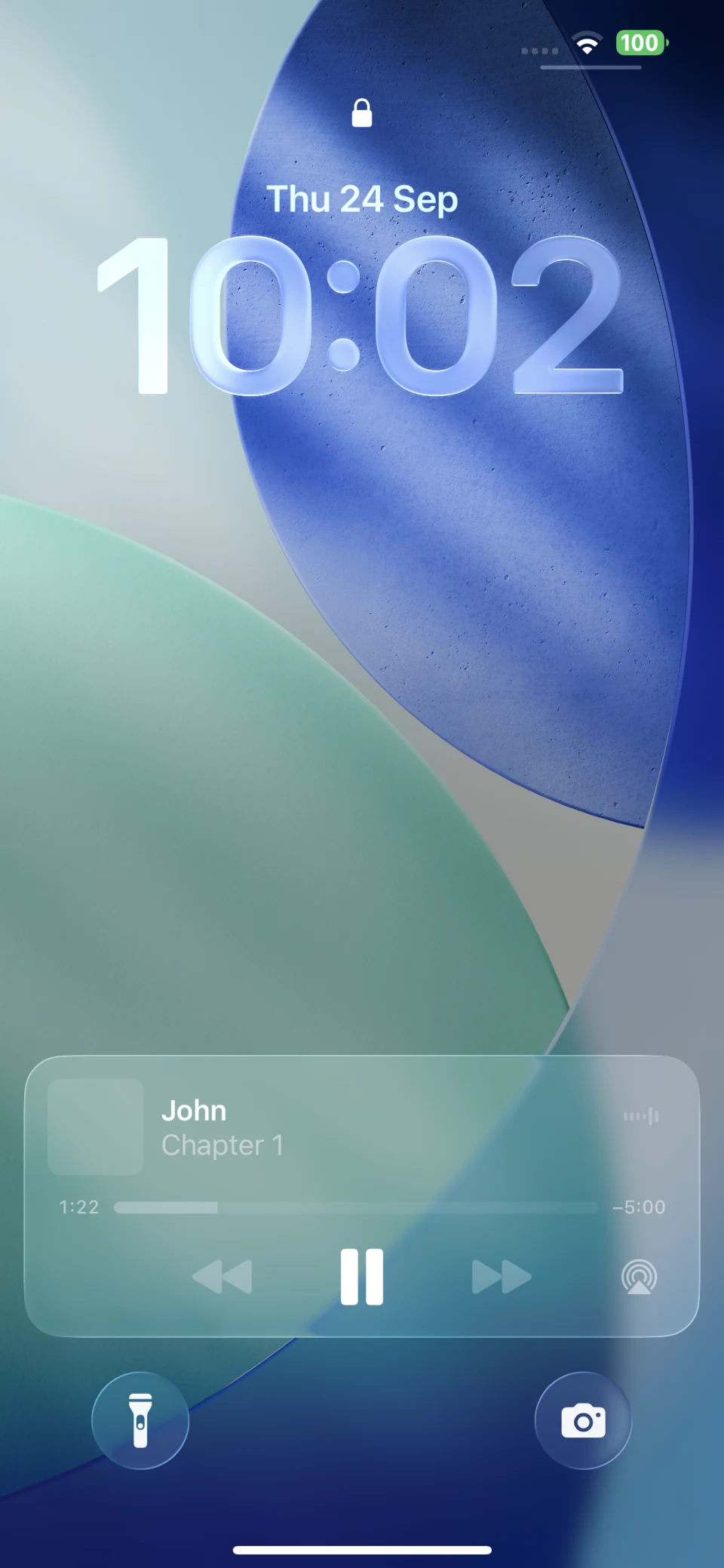
Audio also plays with the screen off. The lock-screen player lets you pause and resume.
Make the Bible text larger
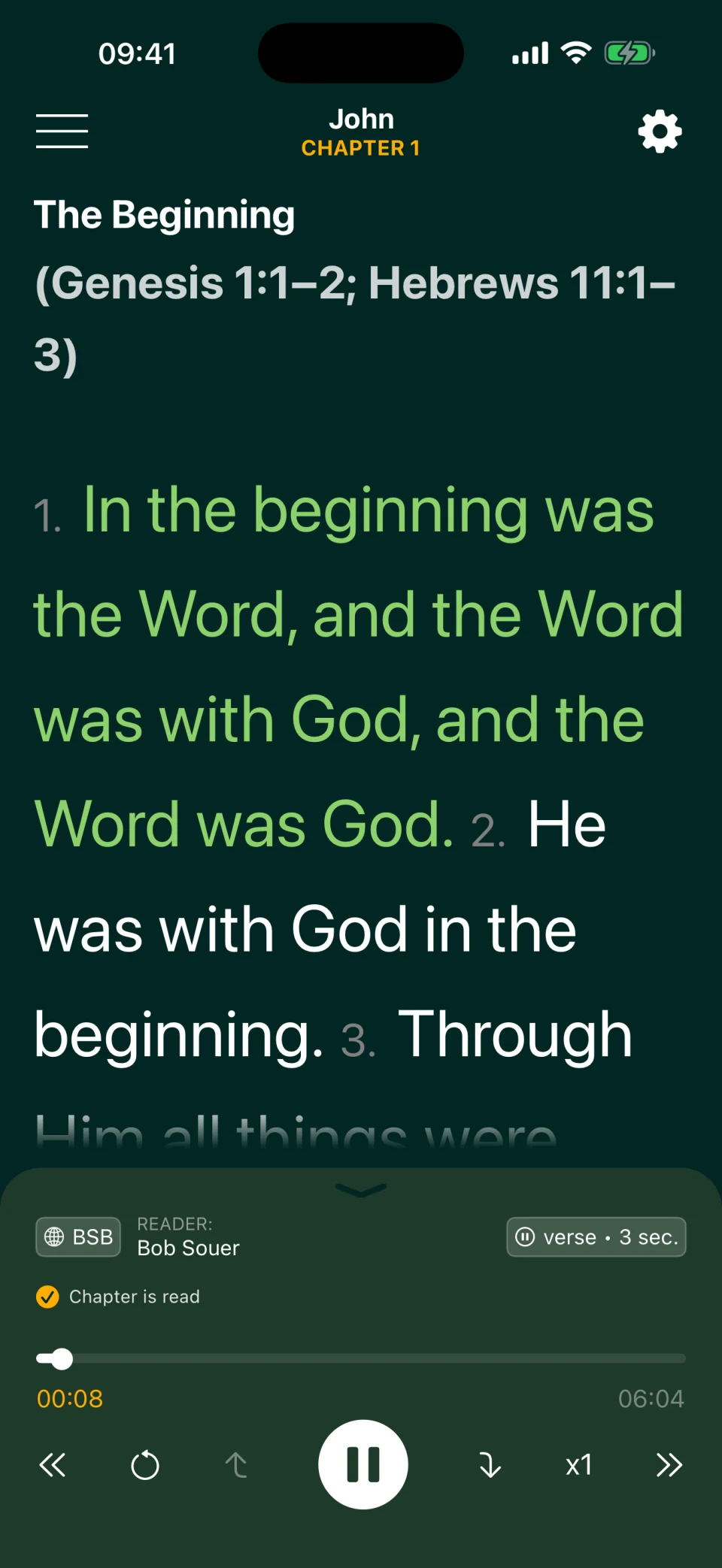
Open reading settings with the gear icon and find “Text size.” The two A buttons decrease or increase the size in steps of 10%, from 10% to 500%. A live sample shows the result before you return to the chapter. “Reset” returns to 100%. The setting stays saved after you restart the app. The screenshot shows 300%; the percentage is the app’s setting, not a literal multiplier of the rendered font size: 100% is 20 px and 300% is 40 px.
Larger type is one of the suggestions in the BDA style guide. Bible Garden lets you adjust text size, but not the font or line spacing.
This setting changes the Bible text, not button labels or menus. With VoiceOver and the largest iOS system text size, the app does not yet work fully; we are working on this. At that system size, some of the layout does not fit on screen. Use the app’s own setting to enlarge the Bible text.
Set a pace you can follow
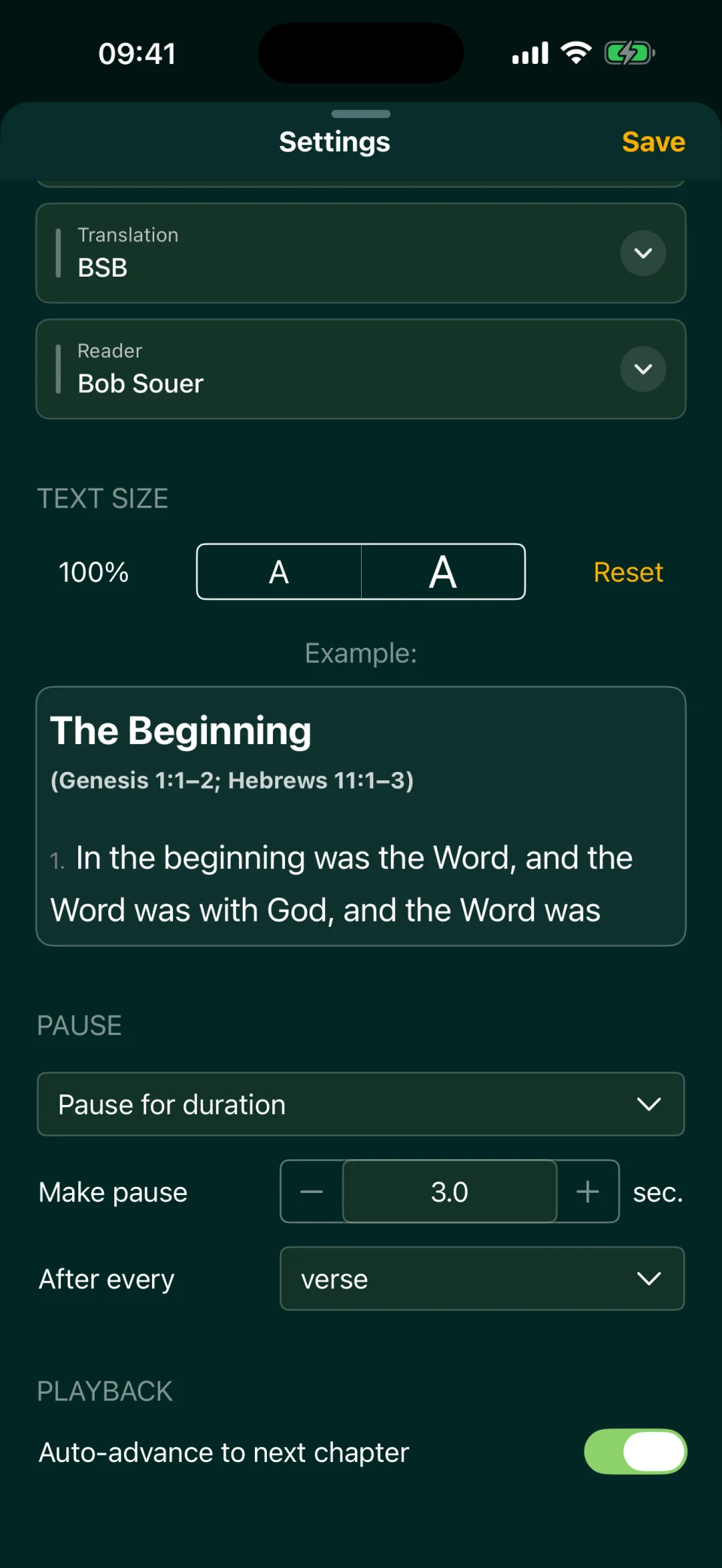
An uninterrupted stream of words can be tiring. In the pause settings, you can choose:
- a timed pause — from a fraction of a second to 60 seconds of silence;
- a full stop — playback waits until you press Play;
- no pauses — continuous reading.
Pauses can come after each verse, paragraph, or section. For example, three to five seconds after a verse gives you time to think or finish reading it. A full stop after a paragraph can help when you listen together: hear it, talk about it, then continue.
The speed button in the player goes from 0.6× to 2.0×. If the narrator feels too fast, try 0.8×.
Hear one verse twice, in different words
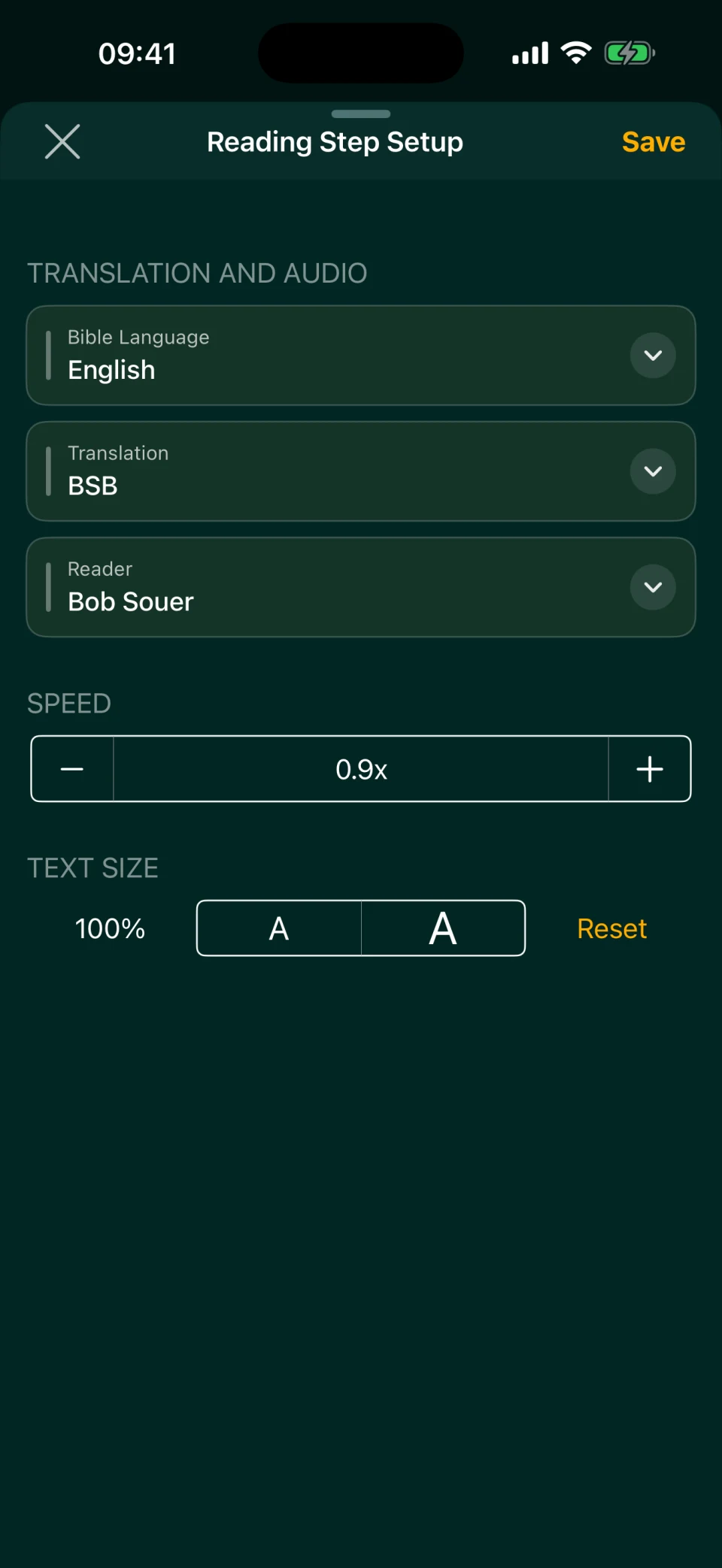
If a verse is hard to understand, hearing it in another translation may help. In Multi Reading, you build a sequence that plays for each verse. For example:
- BSB, read by Bob Souer;
- a three-second pause;
- WEB, read by Winfred Henson.
Both translations appear under each verse, and the one being read is highlighted. Each reading step has its own translation, narrator, speed from 0.5× to 2.5×, and text size. The screenshot shows the settings for an English BSB step. You can make that step slower and larger, then hear WEB at normal speed. You can also repeat a paragraph, section, or whole chapter instead of a verse. For setup instructions, see “Read the Bible in two languages”; the same controls work for two English translations.
Help someone get started
An older parent or a friend with low vision may find it easier if you set things up together first:
- Choose a translation and narrator, text size, and pauses in reading settings, then tap “Save.”
- Open the chapter they want to hear. If you need a starting point, see “How to start reading the Bible.”
- Show them the button that starts and pauses playback. They can leave the other settings alone.
The app remembers the chapter and opens it next time. By default, the next chapter starts automatically when one finishes. Read chapters are marked automatically, so you can see how far you have gone. See “Bible reading tracker” for details.
You need an internet connection to listen; audio downloads are not available yet. The app is free, with no ads or in-app purchases, and runs on iPhone and iPad with iOS 15 or later. An Android version and listening directly on the website are in our plans.
Dyslexia-friendly print, Braille, and talking books
An app is one option. If you need a printed Bible or a service for blind readers, consider these alternatives:
- Dyslexia-friendly print Bibles. Publishers offer the ESV Dyslexia-Friendly Edition, CSB Grace Bible, Dyslexia Friendly Edition, and NASB 1995 Dyslexia Friendly Bible. Their typography and spacing differ from ordinary editions. Look at a sample to decide what is comfortable for you. These are print options, not translations available in Bible Garden.
- Braille and large-print Bibles. Braille Bibles International provides Braille, large-print, and audio Bibles. Xavier Society for the Blind provides accessible Catholic Bible resources in Braille, large print, and audio. Ask the organization about translations, eligibility, and current availability.
- US talking-book libraries. The National Library Service for the Blind and Print Disabled (NLS) serves eligible US residents and US citizens abroad. Its guide to Bibles and other sacred writings lists resources in accessible formats. Ask your local NLS network library about enrollment and the recording you want.
- Audio Bibles for talking-book players. Audio Bibles for the Blind offers KJV and NKJV recordings on NLS cartridges. Check its eligibility requirements and whether the format works with your player.
“Your word is a lamp to my feet and a light to my path” (Psalm 119:105, BSB). There is more than one way to reach those words: by sight, by touch, or by listening.
Frequently asked questions
Is there an audio Bible for the blind?
Braille Bibles International and Xavier Society for the Blind offer accessible Bible resources. In the US, eligible readers can also use NLS talking-book services; Audio Bibles for the Blind supplies recordings on NLS cartridges. Ask about translations and eligibility. Bible Garden has English audio for all 66 books, but VoiceOver does not yet work fully in the app, so we cannot promise that it is usable without sight.
How can I read the Bible with dyslexia?
Try audio while following the highlighted verse, with larger Bible text and a pause after each verse. You can also look at dyslexia-friendly print editions such as ESV, CSB, or NASB. Bible Garden does not treat dyslexia; it offers another way to access the text.
Can I make the Bible text larger in the app?
Yes. In reading settings, “Text size” ranges from 10% to 500% in steps of 10%. In Multi Reading, each reading step has its own text size.
Can I slow the audio down?
Yes. In Classic Reading, speed ranges from 0.6× to 2.0×; in Multi Reading, each step ranges from 0.5× to 2.5×. You can also pause after each verse, paragraph, or section.
Does Bible Garden work with VoiceOver?
Not fully yet. We cannot promise that the app is comfortable to use without sight with VoiceOver, and at the largest iOS system text size, parts of the layout do not fit on screen. We are working on both. You can listen now, and the app’s own Bible text setting goes up to 500%.
Do I need an internet connection?
Yes. Audio streams over the internet; downloading it ahead of time is not available yet.
Is Bible Garden available on Android?
Not yet. It runs on iPhone and iPad with iOS 15 or later. An Android version and listening directly on the website are in our plans.