The 66 books of the Bible shared by every Christian tradition contain 1,189 chapters: 929 in the Old Testament and 260 in the New. A Bible reading tracker shows which ones you've covered, so you don't have to keep it all in your head. There are three ways to track: check boxes on a printed chart (a free one is below), keep a spreadsheet in Google Sheets or Excel, or let an app do it. Paper suits people who read a print Bible. A spreadsheet is for those who like their own stats. An app makes sense if you read or listen on your phone: in Bible Garden, a free app for iPhone and iPad, a chapter is marked as read automatically once you've listened to it or read it to the end.
Three ways to track: which one fits you
| Printable checklist | Spreadsheet | Bible Garden app | |
|---|---|---|---|
| How you mark | Check a box with a pen | Type a number or check a box | Automatically, from what you listen to or read; manual marks too |
| What you see | A filled-in sheet | Any totals you set up | Overall percentage and progress for each book |
| Where it lives | In your Bible or on your desk | On your computer and phone | On one iPhone or iPad |
| Downsides | Easy to lose; you work out percentages yourself | Everything is manual and needs setting up | Tracks automatically only what you read or hear in the app |
You can combine them. For example, let the app record what you listen to on your commute and use paper for what you read at home in a print Bible. Then once a week, copy your marks to one place, or you'll lose the big picture.
Printable Bible reading checklist
The classic Bible reading chart is a sheet listing all 66 books, each followed by one box per chapter: 50 for Genesis, 150 for Psalms, one for Jude. Read a chapter, check its box. Below is a chart like that with all 1,189 chapters, in the book order of English Bibles. The "Print checklist" button prints it on two A4 pages without the rest of this article. You can check boxes on screen too, but they aren't saved: reload the page and the chart is blank again.
Marks are not saved. Print on two A4 pages.
Bible chapter checklist
66 books · 1189 chapters · Page 1 of 2 · bible.garden
Genesis
Exodus
Leviticus
Numbers
Deuteronomy
Joshua
Judges
Ruth
1 Samuel
2 Samuel
1 Kings
2 Kings
1 Chronicles
2 Chronicles
Ezra
Nehemiah
Esther
Job
Psalms
Bible chapter checklist
66 books · 1189 chapters · Page 2 of 2 · bible.garden
Proverbs
Ecclesiastes
Song of Solomon
Isaiah
Jeremiah
Lamentations
Ezekiel
Daniel
Hosea
Joel
Amos
Obadiah
Jonah
Micah
Nahum
Habakkuk
Zephaniah
Haggai
Zechariah
Malachi
Matthew
Mark
Luke
John
Acts
Romans
1 Corinthians
2 Corinthians
Galatians
Ephesians
Philippians
Colossians
1 Thessalonians
2 Thessalonians
1 Timothy
2 Timothy
Titus
Philemon
Hebrews
James
1 Peter
2 Peter
1 John
2 John
3 John
Jude
Revelation
Paper needs no phone and no charger. You can keep the sheet in your Bible as a bookmark, and every checkmark is a small step you can see and touch. The downsides are just as clear: sheets get lost and crumpled, and to know what percentage you've read, you'll have to do the math yourself.
If you'd rather have a dated schedule than a list of chapters, use the 365-day Bible reading plan: you can print it and check off each day on paper.
A spreadsheet in Google Sheets or Excel
A spreadsheet is the same checklist with the math done for you. A basic one takes about ten minutes:
- Column A: the 66 books in order, in rows 2 to 67.
- Column B: the number of chapters in each book.
- Column C: how many chapters you've read; update it after each reading.
- Column D: progress for each book. Put
=C2/B2in cell D2, fill it down, and format the column as percentages. - Total: in any empty cell,
=SUM(C2:C67)/SUM(B2:B67), formatted as a percentage. That way the total uses the chapter counts you entered in column B.
If you want to tick off each chapter separately, put chapter numbers in columns and add checkboxes to the cells (in Google Sheets: Insert → Checkbox). It looks clearer, but the sheet gets wide: Psalms alone has 150 chapters.
The upside of a spreadsheet is that you can add anything: the date, the translation, notes on what you read. Google Sheets works on both your computer and your phone. But every mark is up to you: after reading, you have to open the file and update the number, and if you listened to a chapter on the go, remember to log it in the evening.
An app that marks chapters for you
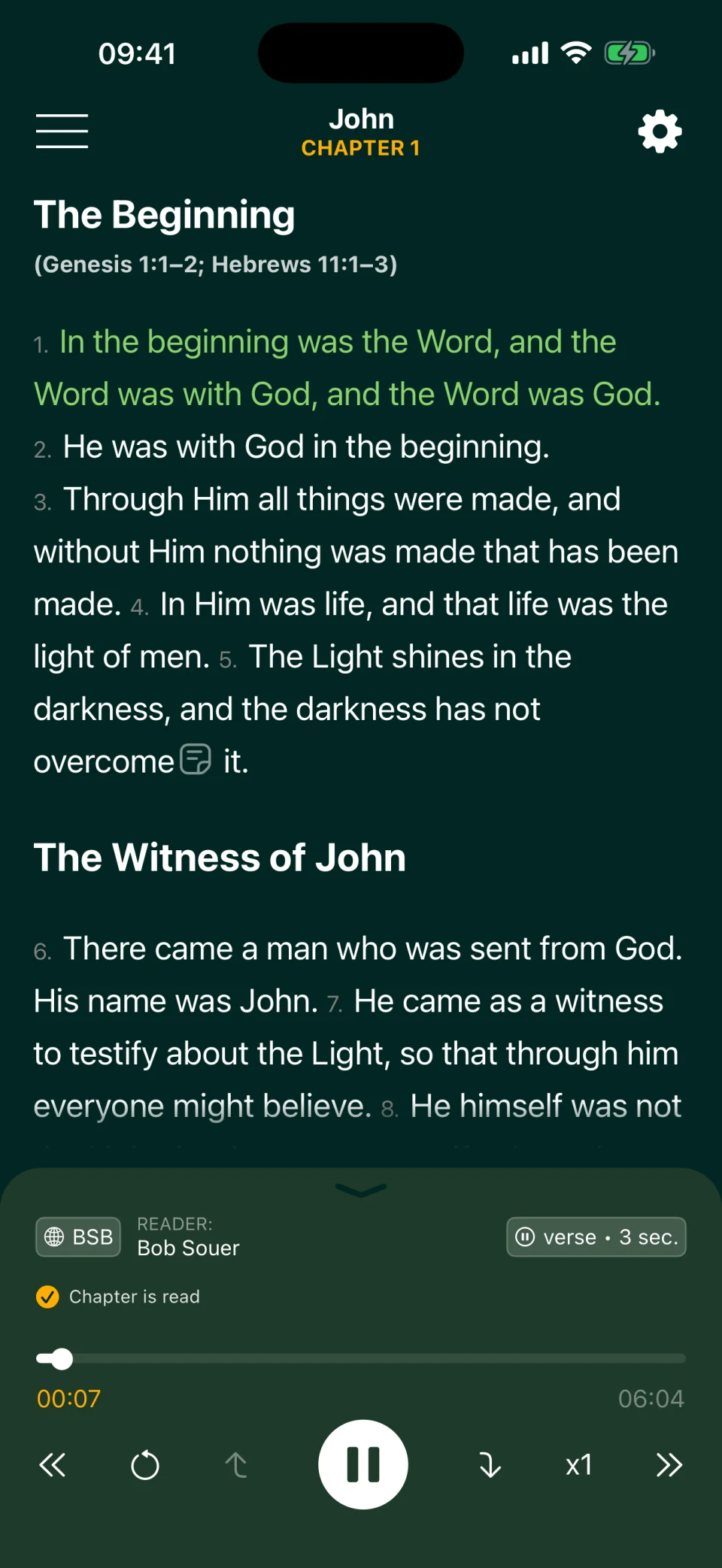
Bible Garden tracks your progress for you. A chapter counts as read once 90% of its verses have played; this rule is on by default. If you read the text instead, a chapter counts once you've reached its end and spent a total of 10–60 seconds in the chapter while audio is stopped. No checkboxes, no spreadsheet.
How the rules work:
- From 90% listened. Only verses that actually played count. The 90% is rounded up, so in a chapter with fewer than ten verses you need to hear every verse. Skip through half a chapter and it won't be marked.
- Text read to end. Reach the end of the text and spend a total of 10–60 seconds in the chapter while audio is stopped, depending on the chapter's length. The time is counted from when you open the chapter, not from when you reach its end. A quick two-second scroll doesn't count as reading.
- Audio completed. A chapter counts once the player reaches its end. This rule is off by default.
Below the text, next to the player, there's a "Chapter is read" mark. As you listen, a ring around it fills up, so you can see how close you are to 90%. Progress is tracked in both Classic Reading and Multi Reading, where each verse plays in several translations in a row.
For example, you can listen to John in the Berean Standard Bible with Bob Souer, then read the World English Bible text later: both use the same chapter progress.
Automatic marking is especially handy for listeners: chapters you play on your commute, on a walk, or while doing chores are logged without any effort. In Classic Reading the next chapter starts on its own (you can turn auto-advance off), and you can pause and resume from the lock screen.
The progress screen: percentages and books
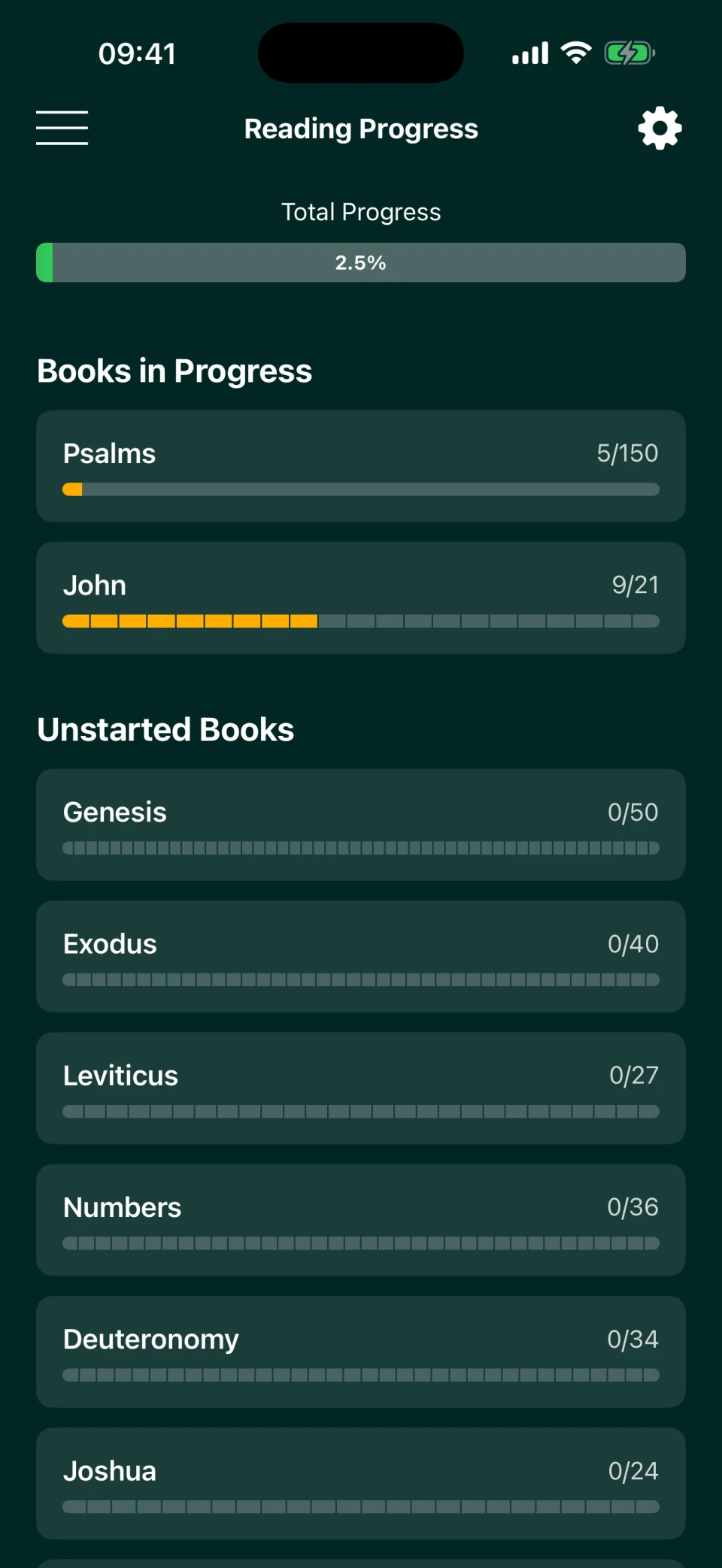
At the top of the Reading Progress screen is your Total Progress: how much of the Bible you've covered. The same percentage appears on the app's home screen. Below, books are grouped into Books in Progress, Unstarted Books, and Completed Books. Each book has a counter such as "9/21" and a bar with one segment per chapter, so you can see not only how much you've read but which chapters you skipped.
Tap a book and the app offers to:
- Read chapter N: open the first unread chapter of that book;
- mark the whole book as read, if you finished it earlier;
- Reset book progress, for example to start it over.
For building a habit, this beats a paper chart: you don't have to look up where you stopped, because the app suggests the next chapter. For the habit itself, see How to Read the Bible Every Day.
Manual marks: if you read on paper or in another app
Automatic marking only sees what you read or hear in Bible Garden. Everything else you can mark by hand:
- A whole book: on the progress screen, tap the book and choose "Mark as read."
- A single chapter: in the chapter list, touch and hold the chapter number, then choose "Mark as read." Read chapters show a green checkmark, and the book's row shows how many chapters you've finished.
- The current chapter: tap the "Chapter is read" mark below the text. Tap it again to clear it.
That's how you bring over a paper checklist or progress from another app and then carry on with automatic tracking.
Settings, and what the app doesn't do
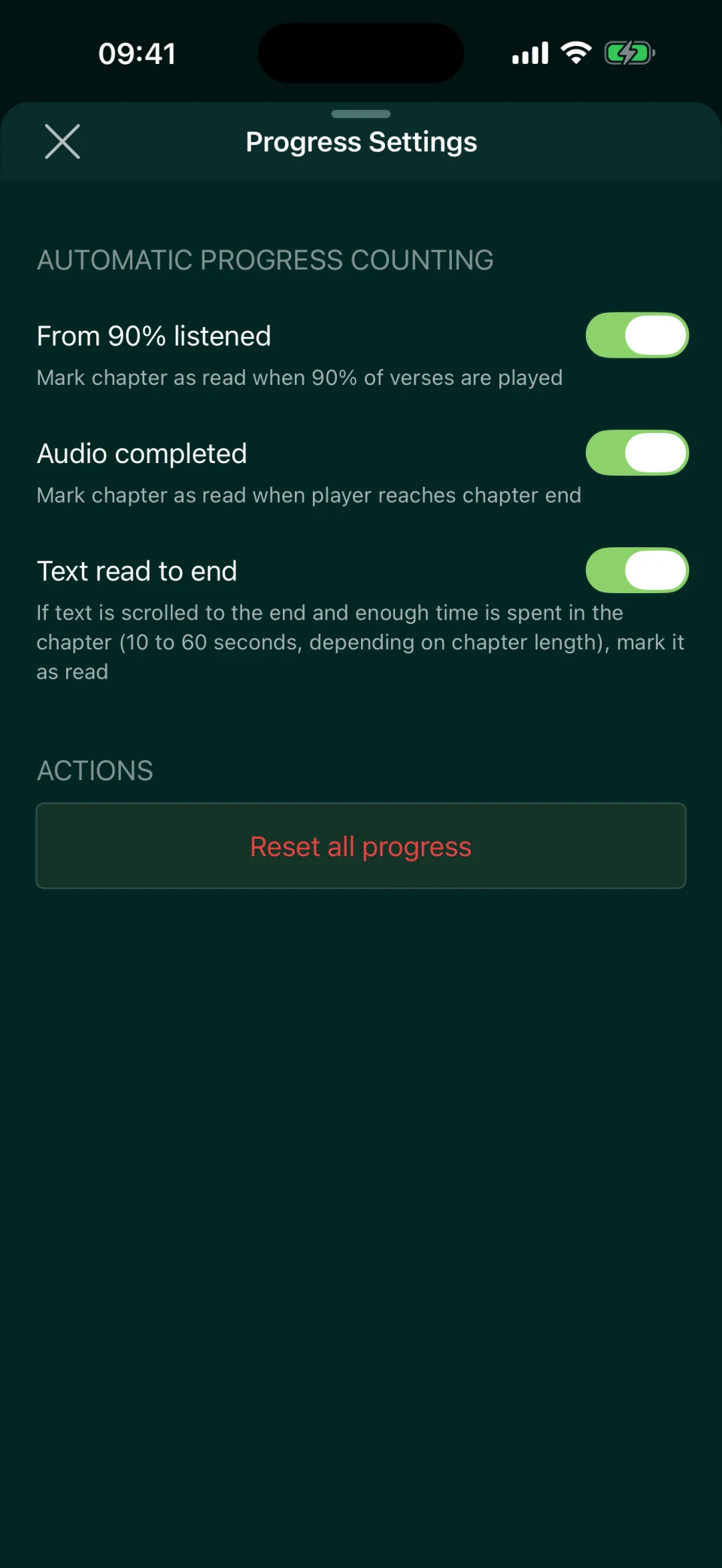
In Progress Settings (the gear icon on the Reading Progress screen), you can turn each of the three automatic rules on or off. By default, "From 90% listened" and "Text read to end" are on; the screenshot shows all three turned on. If you want a chapter to count only when you've read it, turn off both audio rules. The same screen has a "Reset all progress" button for when you want to go through the Bible again.
Good to know up front:
- It counts chapters, not days. There's no streak, so a missed day doesn't reset anything.
- There are no reading plans or reminders in the app. If you want a schedule, use the 365-day plan or one of the well-known plans, and let the app mark the chapters you finish.
- Progress stays on your device. There are no accounts, no sync, and no export: marks on your iPhone won't appear on your iPad.
- Progress is shared across translations. A chapter you listened to in the Berean Standard Bible stays marked when you switch to the World English Bible.
The app is free, with no ads or in-app purchases; a web version and an Android app are in our plans.
Frequently asked questions
How many chapters do I need to check off to read the whole Bible?
1,189: 929 in the Old Testament and 260 in the New. These are the 66 books found in every Christian Bible. Catholic and Orthodox Bibles include additional books; see Books of the Bible in Order. At 3–4 chapters a day you'll finish in about a year; the reading time calculator works out your own pace.
How do I move my progress into Bible Garden from paper or another app?
By hand. Mark books you've finished on the progress screen by tapping each book. For individual chapters, go to the chapter list, touch and hold the chapter number, and choose "Mark as read."
Will a chapter count if I skipped ahead or didn't listen to the end?
With the default settings, a chapter counts once at least 90% of its verses have played. In a long chapter you can miss the last few verses; in one with fewer than ten verses you need to hear them all. If you skip most of a chapter, it won't be marked, unless you've turned on "Audio completed." You can always mark a chapter by hand.
Will my progress stay if I switch translations or narrators?
Yes. Marks are tied to the book and chapter number, so they stay when you change translation or narrator. The app does not match chapter contents across numbering systems. Psalms use Hebrew numbering in BSB, WEB, WEBBE, and Khomenko, and Greek numbering in Synodal, Kulakov, and NPU. The same number can therefore refer to different psalms. For Multi Reading in Psalms, choose translations from the same numbering group: verses are paired by position.
Will my progress carry over to another iPhone or iPad?
Bible Garden doesn't send your progress anywhere: it has no accounts or sync, so marks on your iPhone won't appear on your iPad. If you restore a new iPhone from a backup of your old one, your progress should come with it: according to Apple, an iCloud backup includes app data. If you install the app fresh, you'll need to mark what you've read by hand, which is quick when you mark whole books.
Does Bible Garden have streaks or reminders?
No. The app counts chapters, not days, so a gap doesn't reset anything, and it doesn't send notifications.